
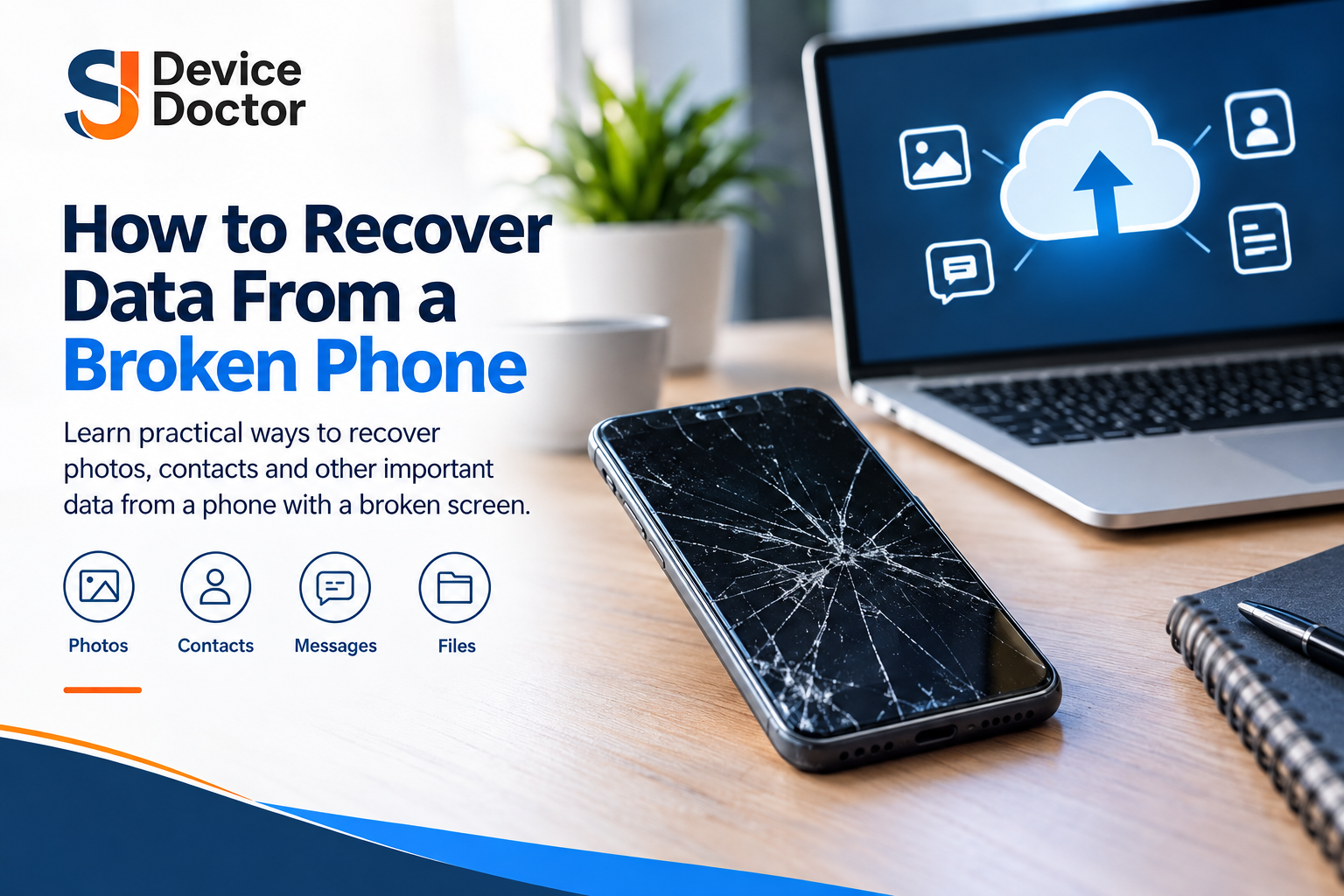
A broken phone screen can be stressful, particularly when the device contains important photos, videos, contacts, messages, documents or work files. The good news is that a cracked or unresponsive screen does not automatically mean your data has been lost.
Broken phone data recovery is often possible when the phone itself is still functioning and its internal storage has not been damaged. However, the recovery method depends on several factors, including the phone model, whether it powers on, whether the touchscreen works, whether the device can be unlocked and whether your data has already been backed up.
In this guide, we explain practical ways to recover data from damaged Android phones and iPhones, what to do when the screen is completely black, and when professional assistance may be the safest option.
Can You Recover Data From a Phone With a Broken Screen?
Yes, in many situations you can recover data from a phone with a broken screen.
A damaged display and damaged internal storage are two different problems. If only the screen has been damaged but the phone’s motherboard and storage are working normally, your photos and other files may still be intact.
The recovery options can depend on:
- Whether the phone switches on.
- Whether you can see anything on the display.
- Whether the touchscreen responds.
- Whether the phone can be unlocked.
- Whether USB data access was previously authorised.
- Whether cloud backups were enabled.
- Whether the internal storage has suffered physical damage.
- The specific Android or iPhone model.
Modern smartphones also use security features such as encryption and passcodes. These protections are designed to prevent someone from simply connecting a locked phone to a computer and accessing its private data.
For this reason, there is no single recovery method that works for every damaged phone.
How to Recover Data From a Broken Android Phone
Android phones from different manufacturers can behave differently when their screens are damaged. If your phone still powers on, start with the simplest recovery options before attempting anything more complicated.
1. Check Google Photos
If Google Photos backup was enabled, your photographs and videos may already be safely stored in your Google account.
Use another phone or computer to sign in to the same Google account and check Google Photos.
Look for:
- Recent photographs.
- Videos.
- Screenshots.
- Automatically backed-up folders.
- Older images that you may have forgotten about.
If the photos are synchronised, you may be able to download them without accessing the damaged phone at all.
2. Check Google Drive and Other Backups
Depending on your phone and backup settings, other information may also have been synchronised or backed up.
Check your Google account for available backups and stored files. Manufacturer-specific services may also be relevant if you previously enabled them.
For example, some Android manufacturers provide their own cloud services or backup systems. The exact options depend on your device and the settings you used before the damage occurred.
3. Connect the Phone to a Computer
If the Android phone is working and can be unlocked, connecting it to a Windows PC or Mac may allow you to access files.
A typical process is:
- Connect the phone using a suitable USB cable.
- Unlock the phone.
- Select the appropriate USB connection mode if prompted.
- Open the phone’s storage on the computer.
- Copy important files to the computer.
However, this method has an important limitation: a computer may not be able to access your files simply because the USB cable is connected.
The phone may need to be unlocked, and some devices require you to approve the connection or select a file-transfer option on the screen.
4. Consider a Supported External Display or USB Adapter
Some Android phones support external displays or USB accessories through compatible connections.
If the phone’s display is damaged but the device itself is operational, a compatible adapter and external display may, depending on the model, provide another way to interact with the phone.
You may also be able to use compatible USB input accessories in certain circumstances.
Compatibility varies considerably between models, so do not assume that an adapter will work with every Android phone.
If the phone contains important data, professional assessment may be safer than repeatedly experimenting with different accessories.
How to Recover Data From a Broken iPhone
iPhone data recovery works differently from Android because Apple tightly controls access to the device and its encrypted storage.
Before attempting complicated recovery methods, check whether your data is already available through iCloud or another Apple device.
1. Check iCloud Photos
If iCloud Photos was enabled, photographs and videos may already be synchronised with your Apple account.
Check your iCloud account from another trusted device or computer to see whether your photographs are available.
This is one of the easiest ways to recover photos when the physical iPhone screen is damaged.
2. Check iCloud Backups
An iCloud backup may contain information from your iPhone, depending on when the backup was created and which data was included.
Remember that an iCloud backup and iCloud Photos are not necessarily the same thing. Some information may be synchronised separately, while other information may form part of a device backup.
Check what backups are available before considering any reset or restoration.
3. Use a Previously Trusted Computer
If you previously connected the iPhone to a computer and authorised it, that computer may already have permission to communicate with the device.
Depending on the iPhone, operating system and backup arrangement, you may be able to use Finder on a Mac or Apple Devices on Windows. Older Windows setups may use iTunes.
The important point is that access can depend on previous trust permissions and whether the iPhone can be unlocked.
4. Passcode Access May Still Be Required
A broken display does not remove the iPhone’s security protections.
If the device requires a passcode or confirmation on the screen, simply connecting it to a computer may not provide access to its contents.
This is why legitimate data recovery should focus on restoring access to the device or using existing backups rather than attempting to bypass its security.
How to Recover Photos From a Broken Phone
Photos are often the most important files people want to retrieve after a screen breaks.
If you want to recover photos from broken phone storage, start by checking whether those photographs have already been backed up.
Check:
- Google Photos for Android devices.
- iCloud Photos for iPhones.
- Other cloud storage services you previously used.
- A computer that was previously synchronised with the phone.
- Other devices signed into the same account.
If the photographs were not backed up, recovery may still be possible if the phone’s internal storage is functioning and the device can be accessed.
A damaged screen does not necessarily mean the storage has failed. However, if the phone cannot be unlocked or recognised correctly, more advanced assistance may be required.
Avoid factory resetting the phone while trying to retrieve photographs. Resetting can remove access to locally stored information and make the situation more difficult.
What If the Phone Screen Is Completely Black or Unresponsive?
A completely black display does not necessarily mean the phone itself has stopped working.
The device may still be receiving power and running in the background. Alternatively, the problem could involve the display, battery, charging system, motherboard or another internal component.
A computer also cannot necessarily access the phone’s files automatically.
Modern smartphones use security and encryption mechanisms that can restrict access until the device has been unlocked or the connection has been authorised.
If the screen is completely unresponsive, the safest approach is usually to determine why the phone cannot be accessed before attempting recovery.
A professional technician can assess issues such as:
- Screen or display failure.
- Charging problems.
- Battery condition.
- Physical damage.
- Liquid exposure.
- Connection or port problems.
- Signs of motherboard damage.
If the phone can be made operational without compromising its storage, accessing the original device may provide a better path to recovering your data.
Common Mistakes to Avoid During Data Recovery
When important files are at risk, it can be tempting to try anything that promises a quick solution. Some actions, however, can make the situation worse.
Do not factory reset the phone
A factory reset removes user data and should not be performed when your priority is data recovery.
Avoid unknown recovery software
Be cautious with programs claiming they can unlock or recover everything from any broken phone. Some may not support your device, while others may require extensive permissions or create additional risks.
Do not share your passwords unnecessarily
Never provide your Apple Account, Google Account or device passcode to an untrusted person or unknown service.
Avoid repeated forceful attempts
Repeatedly plugging, unplugging, restarting or attempting to unlock a physically damaged phone can potentially complicate an already fragile situation.
Do not open or heat the phone without appropriate expertise
Modern smartphones contain delicate components and batteries. Opening or heating a damaged device without suitable knowledge and equipment can cause further damage and may create safety risks.
When Should You Choose Professional Smartphone Data Recovery?
Professional help can be appropriate when standard backup and transfer methods do not work.
Consider professional assistance if:
- The phone does not respond normally.
- The display is completely unusable.
- The phone has suffered significant physical damage.
- The device has been exposed to liquid.
- The computer does not recognise it correctly.
- You cannot access important locally stored files.
- The data is particularly valuable or difficult to replace.
Smartphone data recovery is highly dependent on the condition and design of the individual device. A technician should first assess the phone rather than promising that every file can be recovered.
The priority should generally be to preserve the original device and avoid unnecessary actions that could affect its internal storage.
SJ Device Doctor can provide professional phone diagnostics and repair assistance for supported devices. If your phone contains important information that you cannot access after screen damage, professional assessment can help determine what options are available without making unsupported recovery promises.
How to Prevent Data Loss in the Future
The easiest way to make future phone recovery less stressful is to maintain reliable backups before something goes wrong.
Turn on automatic cloud backups
For Android, review your Google backup and Google Photos settings.
For iPhone, check your iCloud backup and iCloud Photos settings.
Make sure backups are actually completing rather than simply assuming they are enabled.
Make regular computer backups
Cloud storage is useful, but an additional computer backup can provide another layer of protection.
For particularly important photographs, documents and work files, consider keeping copies in more than one location.
Keep your recovery accounts accessible
Remember the email addresses, passwords and recovery methods associated with your Apple or Google account.
If you lose access to your account at the same time as your phone, recovering your data can become considerably more complicated.
Check your backup status periodically
Do not wait until your phone breaks to discover that your last successful backup was months ago.
A quick backup check every so often can help ensure that your important information is protected.
Frequently Asked Questions
Can I recover data from a phone with a completely broken screen?
Possibly. Recovery depends on whether the phone itself is still functioning, whether its internal storage is healthy, whether it can be unlocked and whether backups are available. A completely unusable screen can make direct access more difficult.
How can I recover photos from a broken phone without USB debugging?
USB debugging is not required for every recovery situation. First check Google Photos, iCloud Photos or other existing backups. If the data is only stored locally, access may depend on the phone being unlocked and the particular device’s security and connectivity features.
Can I transfer data from a broken Android phone to a computer?
Sometimes. If the phone can be unlocked and configured for file transfer, a USB connection may allow you to copy files. If the touchscreen is unusable or the phone remains locked, additional assistance may be necessary.
Can I recover data from an iPhone with an unresponsive touchscreen?
It may be possible if the data exists in iCloud or an authorised computer backup. If the information is stored only on the iPhone, access may depend on the device being functional and successfully unlocked.
Will replacing my phone screen delete my data?
A screen replacement itself does not normally require deleting the phone’s user data. However, any repair should be handled carefully, particularly when the data is important. Always tell the repair provider that preserving your data is a priority.
How much does broken phone data recovery cost?
There is no single price because the work required depends on the phone model, type of damage, storage condition and whether the device can be accessed normally. The best approach is to have the phone assessed first so the appropriate options can be explained.
Final Thoughts
A broken screen does not automatically mean your photographs, contacts, messages and other files are gone. In many cases, the information remains safely stored inside the phone or is already available through a cloud backup.
Start with the simplest options: check your Google or Apple account, look for existing backups and try an authorised computer connection if the phone can still be unlocked. Avoid factory resets, unknown recovery software and attempts to bypass device security.
If the screen is completely unresponsive, the phone has suffered physical or liquid damage, or your important files are stored only on the device, professional assessment may be the safest next step.
SJ Device Doctor can help assess supported damaged phones and identify appropriate repair or diagnostic options. The earlier a damaged device is assessed, the easier it may be to make an informed decision about protecting access to the information stored on it.