
Pressing the power button or Touch ID on your MacBook and seeing nothing happen can be worrying. If your MacBook is not turning on, it is easy to assume that the battery, motherboard or another major component has failed. However, a MacBook that appears completely unresponsive can have several possible causes, ranging from a discharged battery or charging problem to a software issue or display fault.
Before looking for professional MacBook repair, there are several safe checks you can perform at home. A faulty charger, damaged cable, empty battery, connected accessory or even a screen problem can sometimes make a working MacBook appear to be completely dead.
This guide explains what to check when your MacBook won’t turn on, how to distinguish a power problem from a black-screen or startup issue, and when it is better to stop troubleshooting and seek professional assistance.
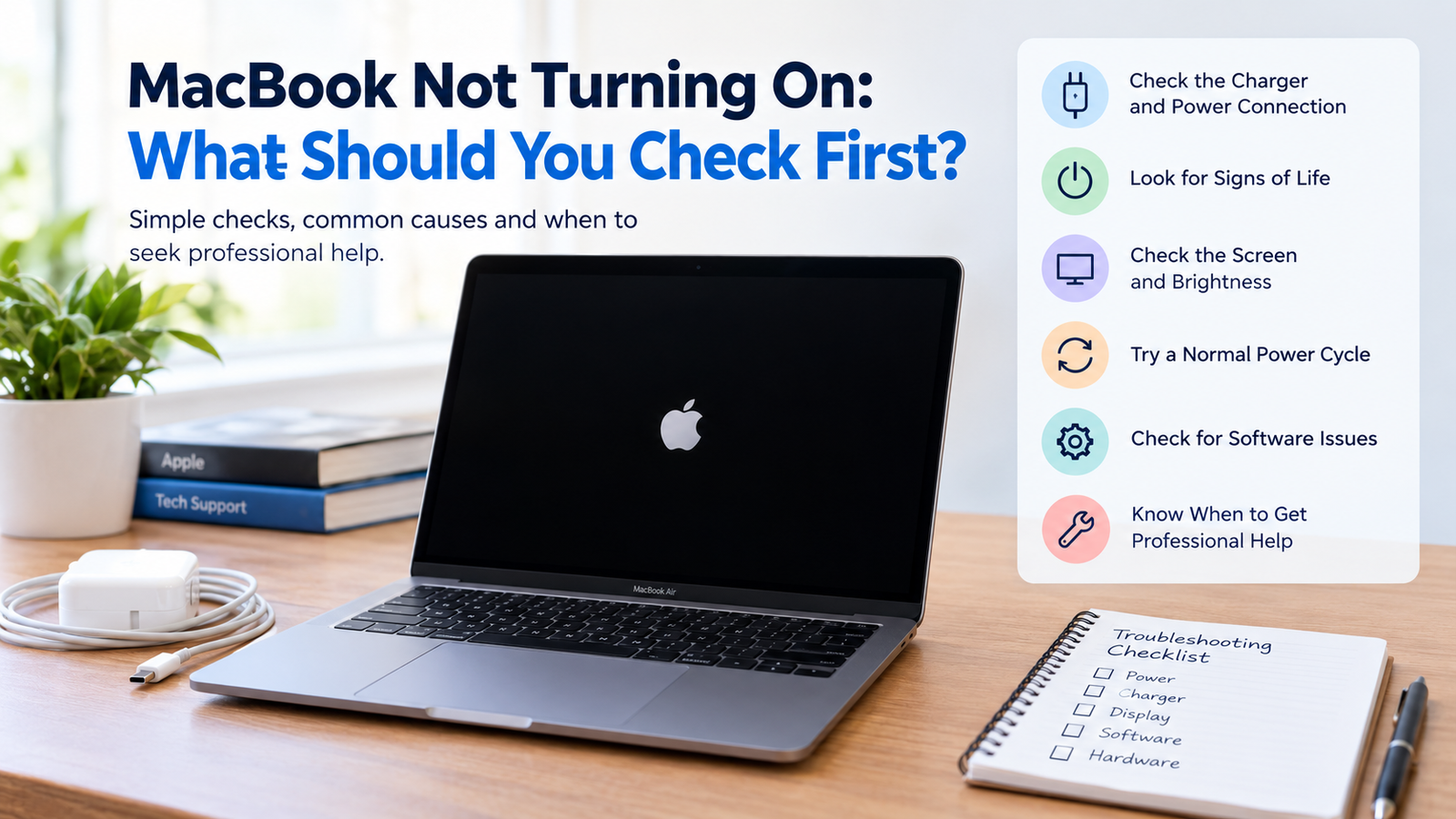
MacBook Not Turning On: What Should You Check First?
If your MacBook is not powering on, work through the following checks in order. Start with the simplest possibilities before considering more serious hardware faults.
1. Check the Charger and Power Connection
The first thing to check is whether your MacBook is actually receiving power.
Make sure the charger is firmly connected to both the MacBook and the electrical socket. If possible, try a different compatible power socket to rule out a problem with the socket itself.
Also inspect the charging cable for visible damage such as:
- Frayed or exposed wires
- Bent connectors
- Cuts or cracks
- Signs of overheating or burning
- Loose connections
Depending on your MacBook model, check the USB-C or MagSafe connector for dirt, debris or visible damage. Do not insert sharp objects into the charging port.
A faulty charger, cable or socket can make a perfectly functional MacBook appear completely dead.
2. Leave the MacBook Connected to Power
If the battery has become deeply discharged, the MacBook may not respond immediately when you press the power button.
Connect it to a compatible Apple charger or a properly certified compatible charger and allow it to remain connected. Avoid repeatedly pressing the power button while waiting.
There is no single charging period that applies to every MacBook, because battery condition, charger performance and the particular model can all affect how the device responds.
If the MacBook eventually shows signs of charging or starts normally, the problem may have been related to battery charge or power delivery.
3. Look for Signs of Life
A MacBook that does not display an image is not necessarily switched off.
After connecting the charger, check carefully for any signs that the machine is operating, including:
- Screen illumination
- Keyboard backlight
- Trackpad response
- Startup sound, where applicable
- Fan or other operating sounds
- Charging indicators where available
- An image on an external display
These signs can help determine whether you have a genuine power problem or whether the MacBook is actually running but has a display or startup issue.
For example, if the keyboard responds or an external display shows an image, the problem may not be the MacBook’s power system.
4. Check Whether the Screen Is the Problem
A MacBook screen not turning on can easily be mistaken for a MacBook that has no power.
First, try adjusting the screen brightness. If the MacBook appears to be operating but the built-in display remains black, connect an appropriate external display if one is available.
A faulty display, backlight or internal display connection can result in a MacBook black screen even when other components are working.
If you can hear the MacBook operating but cannot see anything on the built-in display, avoid assuming that the entire computer has failed. A professional technician can determine whether the issue is related to the display system or the MacBook’s main hardware.
5. Try a Normal Power Cycle
If your MacBook appears completely unresponsive, try a basic power cycle.
Press and hold the power button, or the Touch ID button where it also functions as the power button, for several seconds. Then release it and try starting the MacBook normally again.
This is a basic troubleshooting step and does not require opening the device.
Do not attempt to remove the battery, disconnect internal components or dismantle the MacBook unless you are properly trained to do so.
6. Disconnect Unnecessary Accessories
Connected accessories can sometimes interfere with startup or make troubleshooting more difficult.
Disconnect unnecessary devices such as:
- USB hubs
- External hard drives or SSDs
- Docking stations
- External monitors
- USB accessories
- SD cards
Then try starting the MacBook again with only the necessary power connection attached.
If the MacBook starts normally after removing an accessory, reconnect devices one at a time to identify whether a particular peripheral is causing the problem.
7. Try macOS Recovery
If the MacBook shows signs of power but cannot start macOS normally, Recovery can provide useful troubleshooting options.
The exact process differs between Apple silicon MacBooks and Intel-based MacBooks, so it is important to use the correct method for your model rather than following instructions designed for an older Mac.
macOS Recovery can provide access to tools that may help with:
- Checking the startup disk
- Troubleshooting startup problems
- Reinstalling macOS
- Accessing other recovery utilities
Be particularly careful with options that erase or reformat the storage drive. Do not erase the drive simply as a troubleshooting experiment if you have important files that are not backed up.
If you are unsure which Recovery option to use, professional assistance can help prevent accidental data loss.
8. Identify the Type of Startup Problem
Not every MacBook that will not start is experiencing the same fault. Pay attention to exactly what happens when you attempt to turn it on.
MacBook completely dead
There are no visible signs of power, no screen activity and no obvious response.
Possible causes include a battery problem, charger issue, charging fault or internal hardware failure.
MacBook powers on but shows a black screen
The MacBook may actually be running, but the display is not producing an image. Display, backlight, software or connection problems can cause this symptom.
MacBook stuck on the Apple logo
This usually means the MacBook has progressed further into startup but cannot complete the boot process. Software, startup disk or update-related problems can be possible causes.
MacBook stuck on a loading bar
A loading bar that stops progressing may indicate a macOS startup problem or an issue with the startup disk.
MacBook repeatedly restarts
Repeated restarting can be associated with software problems, failed updates, power issues or hardware faults.
Folder with a question mark
A folder with a question mark can indicate that the Mac is having difficulty locating a valid startup system.
Understanding the exact symptom can make diagnosis considerably easier.
Common Reasons a MacBook Won’t Turn On
There are several reasons a MacBook won’t turn on, and the symptoms can overlap.
Dead or Faulty Battery
An ageing, damaged or failed battery can prevent normal startup. If the MacBook only responds when connected to power, the battery may need further diagnosis.
Faulty Charger or Charging Port
A damaged charger, cable or charging port can prevent the battery from receiving power. This can make the MacBook appear completely dead.
Display or Backlight Failure
The MacBook may be powered on even though its display remains black. A display or backlight problem should not automatically be treated as a complete power failure.
macOS or Firmware Problems
Failed updates, corrupted system files and startup problems can prevent macOS from loading correctly.
Overheating
Excessive heat can affect normal operation. If your MacBook has become unusually hot, allow it to cool naturally before attempting further troubleshooting. Do not use extreme cooling methods such as placing the device in a refrigerator.
Liquid or Physical Damage
A spill, drop or impact can damage internal components. If your MacBook has suffered liquid or physical damage and subsequently stopped working, further power attempts may not be appropriate.
Logic Board or Power Management Fault
Internal power-management or logic-board faults can prevent a MacBook from powering on. These problems generally require professional diagnosis because they involve components that should not be accessed by inexperienced users.
MacBook Air vs MacBook Pro Not Turning On
Both MacBook Air and MacBook Pro models can experience charging, battery, display, software and hardware problems.
If your MacBook Air is not turning on, begin with the same basic checks: charger, power connection, battery response, accessories and signs of life.
Likewise, if your MacBook Pro is not turning on, do not immediately assume the logic board has failed. Check whether the MacBook is receiving power and whether it is actually running with a display-related problem.
Troubleshooting can also vary depending on whether your MacBook uses Apple silicon or an Intel processor. This is particularly important when using startup and Recovery procedures, as instructions for one generation may not apply to another.
What If the MacBook Turns On but Shows a Black Screen?
A MacBook that powers on but displays nothing is different from a MacBook with no power.
Before seeking repair, safely check:
- Screen brightness.
- Whether the MacBook responds to the trackpad or keyboard.
- Whether an external display produces an image.
- Whether the MacBook reaches the Apple logo or another startup screen.
- Whether recently connected accessories can be removed.
Potential causes include display brightness settings, external display configuration, macOS startup problems, display hardware, backlight problems or an internal display connection issue.
If the MacBook appears to be running but the built-in screen remains completely black, professional diagnosis may be needed.
What If the MacBook Is Stuck on the Apple Logo?
A MacBook stuck on the Apple logo has generally progressed beyond the initial power stage but is having difficulty completing startup.
Possible causes include:
- macOS startup problems
- A failed or interrupted update
- Startup disk issues
- Connected peripheral conflicts
- Software corruption
Disconnect unnecessary accessories and consider using the appropriate macOS Recovery options for your MacBook.
If the problem continues, avoid repeatedly reinstalling or erasing the system without understanding the potential effect on your data.
When Should You Stop Troubleshooting?
Basic troubleshooting is useful, but there are situations where continuing to experiment can make matters worse.
Consider professional diagnosis if:
- The MacBook shows no signs of power after basic checks.
- It does not appear to charge.
- It has suffered liquid damage.
- It was recently dropped or physically damaged.
- It becomes unusually hot.
- You notice a burning smell or unusual noise.
- The battery appears swollen.
- The MacBook repeatedly shuts down or restarts.
- Recovery Mode does not resolve the problem.
- Important data is stored on the MacBook and you are unsure what to do next.
Do not open the MacBook yourself if you are inexperienced, particularly if there may be battery damage, liquid damage or another internal hardware fault.
Can Data Be Recovered From a MacBook That Won’t Turn On?
A MacBook that will not power on does not automatically mean that your files are lost.
If important documents, photos or other data are stored on the device, avoid unnecessary formatting, drive erasure or macOS reinstallation until you understand the consequences.
Professional diagnosis can help determine whether the problem is related to power, the display, software or internal hardware before potentially destructive actions are taken.
If your data is important and you do not have a suitable backup, make data preservation a priority when deciding what to do next.
How a Professional MacBook Repair Service Can Help
When basic checks do not resolve the issue, a professional MacBook repair service can help identify the underlying cause rather than simply treating the visible symptom.
A technician may investigate issues involving:
- Battery faults
- Charging problems
- Power-related faults
- Display problems
- Liquid damage
- Logic board faults
- macOS and startup issues
- Internal component failures
For users in the UK who need assistance, SJ Device Doctor provides a professional option for MacBook and device repair. If your MacBook remains unresponsive after safe troubleshooting, having the device properly assessed can help establish whether the problem is repairable and what the next appropriate step should be.
Frequently Asked Questions
Why is my MacBook not turning on at all?
A MacBook may not turn on because of a discharged or faulty battery, charger or charging problem, software issue, display fault or internal hardware failure. Start with the charger, power connection and basic signs-of-life checks.
How do I fix a MacBook that won’t turn on?
Check the charger and socket, leave the MacBook connected to compatible power, disconnect unnecessary accessories and try a normal power cycle. If there are still no signs of power, professional diagnosis may be required.
Why is my MacBook screen black but the device seems powered on?
The MacBook may have a display, backlight, software or internal display connection problem. Check brightness and, if available, test with an appropriate external display.
Why is my MacBook not charging or turning on?
A faulty charger, cable, socket, charging port or battery can prevent both charging and startup. Check the power connection and charging accessories before assuming the MacBook has suffered internal damage.
What should I do if my MacBook is stuck on the Apple logo?
Disconnect unnecessary accessories and consider the appropriate macOS Recovery options for your Mac model. If the MacBook remains stuck, the problem may involve macOS, the startup disk or hardware.
Can a dead MacBook battery cause the device not to turn on?
Yes. A deeply discharged, ageing or faulty battery can prevent normal startup. However, similar symptoms can also be caused by charger, charging-port or internal hardware problems.
Can liquid damage stop a MacBook from powering on?
Yes. Liquid can affect internal components and may cause power or logic-board problems. If your MacBook has suffered a spill, avoid repeatedly trying to power it on and seek professional advice.
Should I take my MacBook to a repair shop if it still won’t turn on?
If basic and safe checks do not resolve the problem, particularly if there is physical or liquid damage, unusual heat, a swollen battery or no charging response, professional diagnosis is recommended.
Conclusion
When a MacBook is not turning on, the problem is not necessarily a major hardware failure. Start with the basics: check the charger and power connection, allow the battery to receive power, look for signs of life, disconnect unnecessary accessories and determine whether the issue could actually be related to the display or macOS startup.
The symptoms matter. A completely dead MacBook, a black screen, an Apple logo that never progresses and a MacBook that repeatedly restarts can all point towards different areas of the device.
If your MacBook still will not power on after safe troubleshooting, or if it has suffered liquid damage, physical damage, battery problems or suspected internal hardware failure, avoid opening the device yourself. Professional MacBook repair can help identify the cause while reducing the risk of unnecessary damage or data loss.